Pipedrive Deals and Leads
Send selected deals from Pipedrive to Daktela with one click, so your contact centre can call them — and have each call logged back on the deal in Pipedrive.
What it does and when to use it
This integration is a Daktela app for Pipedrive that runs on Daktela Hub, Daktela's integration platform (formerly called Labs):
- In Pipedrive, a Contact in Daktela action appears on deals. It sends the selected deals to Daktela, where each one becomes a campaign record with the deal's phone number, ready for an agent to call.
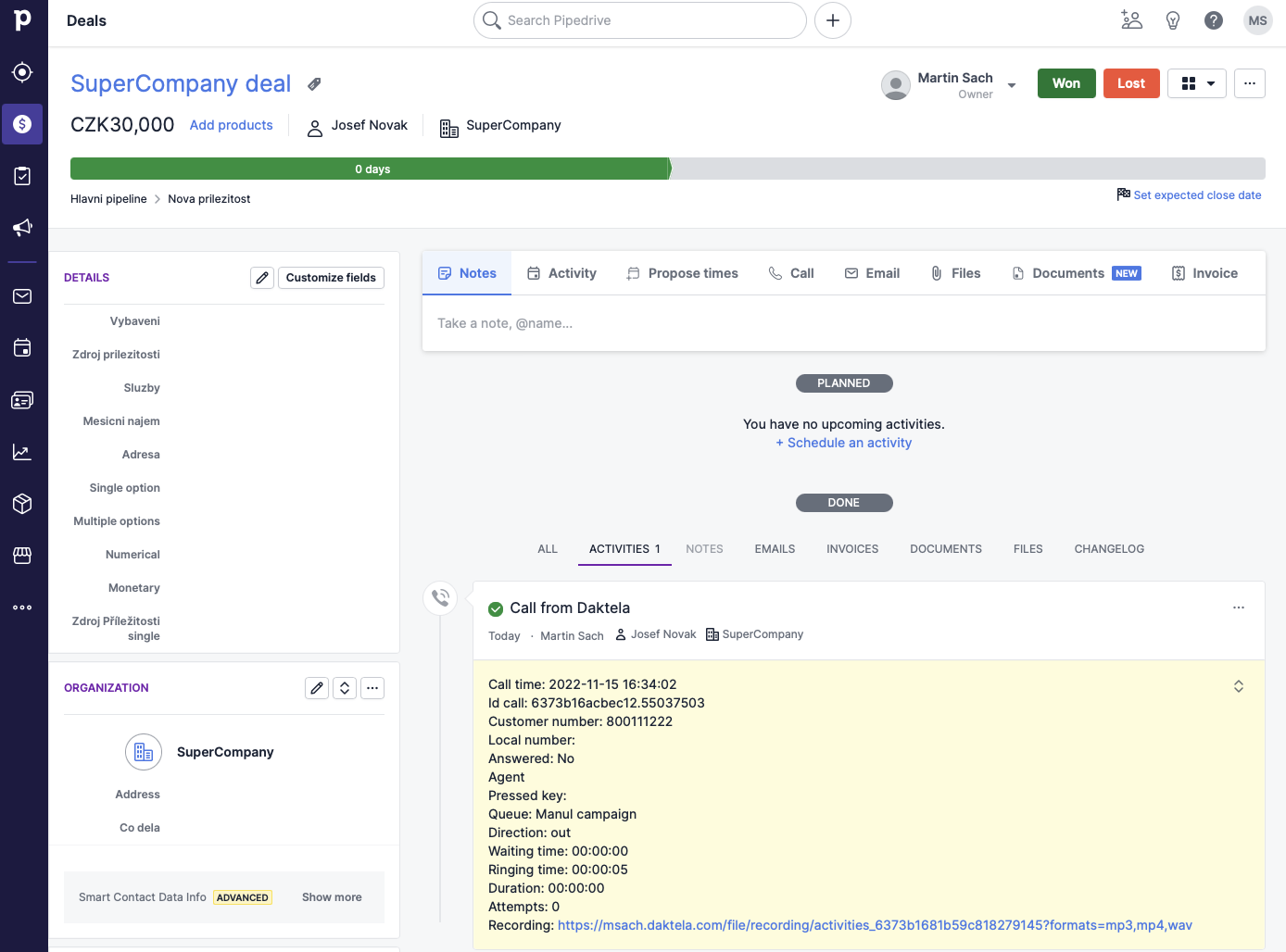
- When an agent finishes the call on that campaign record, the call is sent back to Pipedrive and logged as an activity on the deal.
The flow starts in Pipedrive: a salesperson decides which deals the contact centre should call.
Typical use cases
- Hand deals over for calling. Sales selects deals that need a call — for example a follow-up or a renewal — and sends them to the contact centre in one step.
- Outbound campaigns from Pipedrive. Send a batch of deals from the deal list to Daktela and let agents work through them as campaign records.
- Call results on the deal. The call made by the agent appears on the deal in Pipedrive, so sales sees that the customer was contacted.
Tip
To import all Pipedrive people and organisations into Daktela and log every call, e-mail and chat to Pipedrive automatically, use the Pipedrive integration instead. The two can complement each other.
Prerequisites and setup
Prerequisites
- Daktela Hub account: the integration runs on Daktela Hub, which needs a user account. Contact us at daktela@daktela.com to get one before you start.
- In Pipedrive: permission to install apps.
- In Daktela: an administrator who can edit campaign record types and their forms.
Step 1: Install the Daktela app in Pipedrive
- Open the Daktela app in the Pipedrive Marketplace. The app is not publicly listed, so use this link.
- Install the app and allow access. You are redirected to Daktela Hub.
Step 2: Create the integration in Daktela Hub
- In Daktela Hub, create a new Pipedrive integration. The only required field is your Daktela instance.
- Open the new integration's detail, create the Daktela event and generate the form fields.
Step 3: Add the fields to your record type
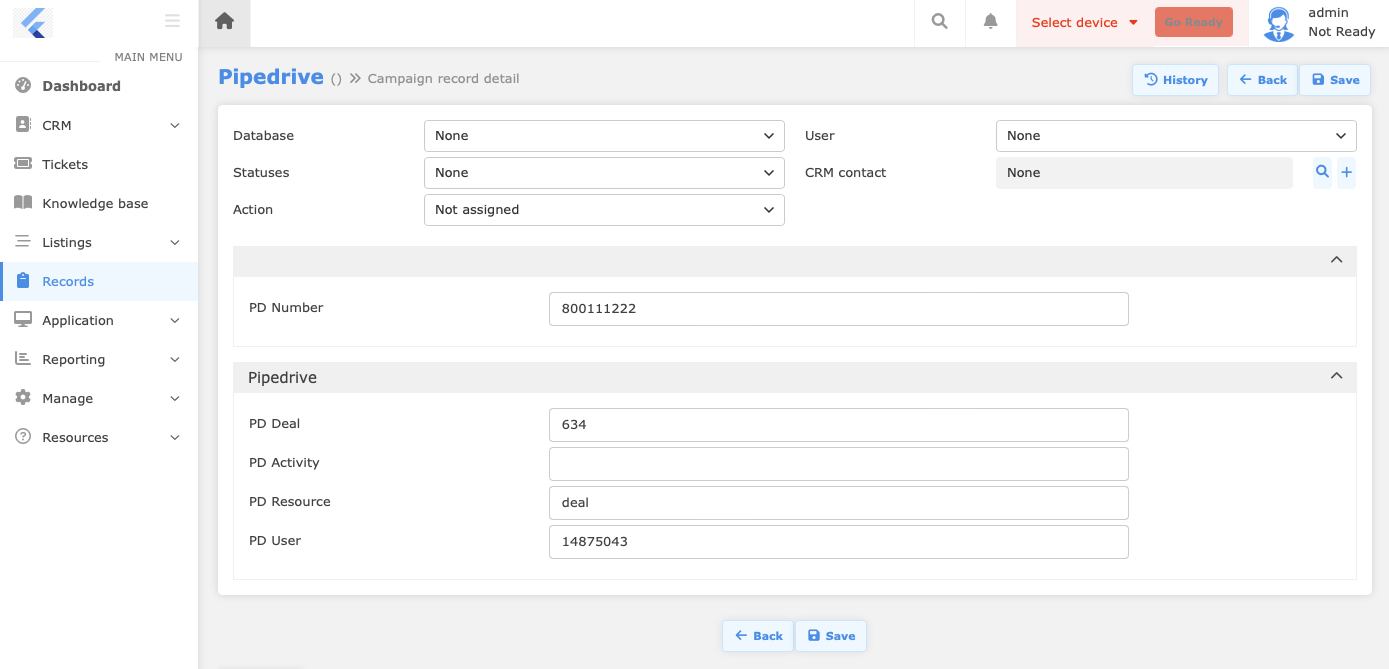
In Daktela, add the generated fields to the form of the campaign record type you want to use for the deals. A deal can only be sent to a record type whose form contains these fields.
Step 4: Send deals to Daktela
-
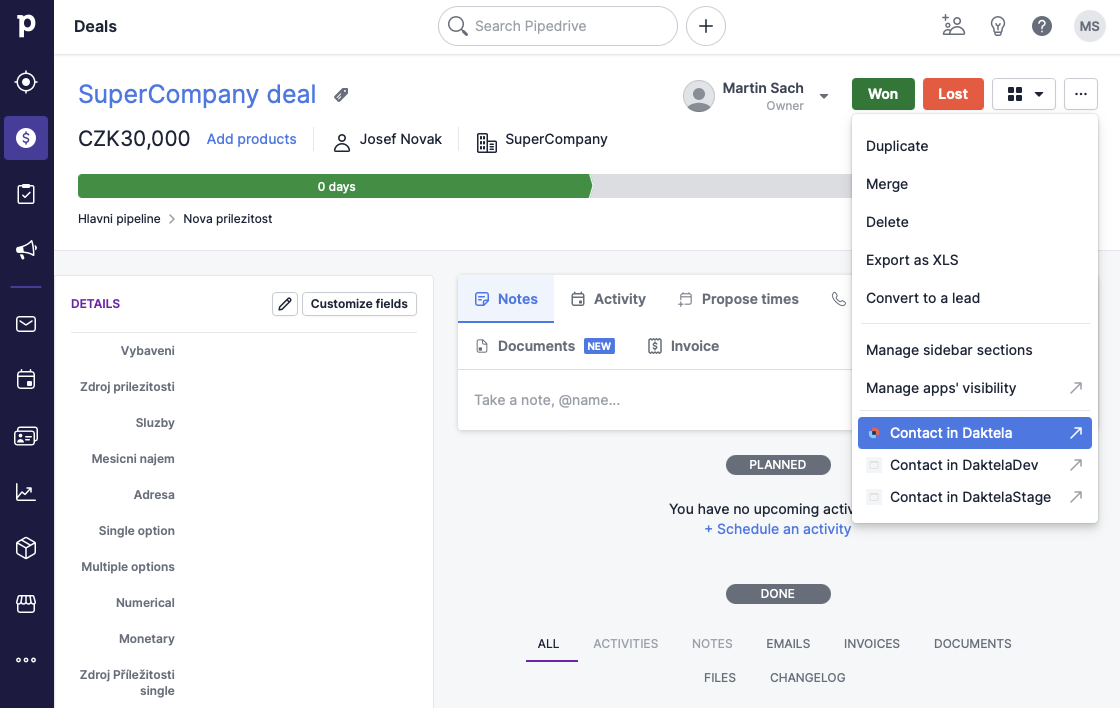
In Pipedrive, open a deal, or select several deals in the deal list. Click the ... (three dots) button and then Contact in Daktela.
-
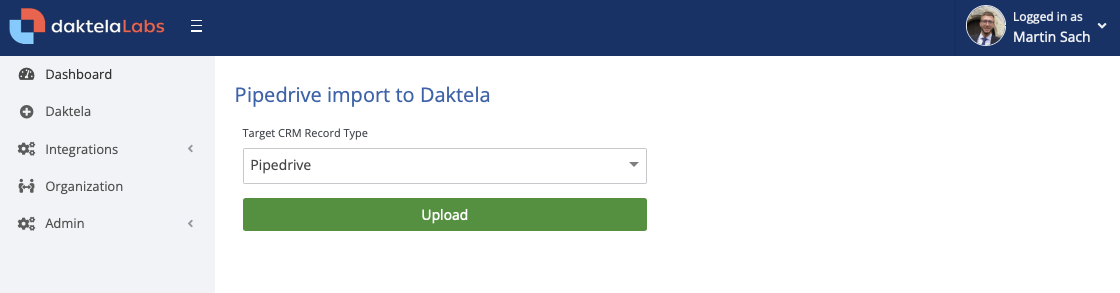
Select the record type and click Upload. A new campaign record with the deal's phone number is created in Daktela.
-
When an agent loads the campaign record and makes the call, the call is logged on the deal in Pipedrive.
Technical details
| Topic | Behaviour |
|---|---|
| Direction | Deals Pipedrive → Daktela (on demand, when a user clicks Contact in Daktela); calls Daktela → Pipedrive. |
| Connection | Runs on Daktela Hub, which talks to both Pipedrive and your Daktela instance. Nothing is installed in Daktela itself. |
| Authentication | OAuth authorisation of the Daktela app in Pipedrive; your Daktela instance is connected in Daktela Hub. |
| Trigger | Deals are sent only when a user clicks Contact in Daktela — there is no scheduled sync. Calls are sent back when the agent closes the call activity (the activityCall::close event). |
| What is created in Daktela | One campaign record per deal, of the record type selected in the dialog, with the deal's phone number and the generated Pipedrive fields. |
| What is written to Pipedrive | The call, as an activity on the deal the campaign record came from. |
| Availability | The app is not publicly listed in the Pipedrive Marketplace; it is installed through the direct link above. |
Things to know
- The deals must have a phone number — it is the number the agent calls.
- Only calls on campaign records created by this app are logged to Pipedrive. Other contact-centre activities are not; for those, use the Pipedrive integration (Integrations v2).
- If Contact in Daktela fails for a record type, check that the record type's form contains the fields generated in Step 2.